Spatial View
The spatial view first appears when you kick off a simulation. Since simulations can take anywhere from 5 minutes to overnight depending on size and complexity, you’ll spend significant time with this screen. It remains available after completion, making it useful for browsing and analyzing results at your own pace.Before seeing the spatial view with dots, you’ll go through a persona approval flow where you can review and approve or deny the automatically generated personas. Learn more about persona approval →
Overview
The spatial view displays conversations as dot clusters positioned across your screen. Each cluster represents a single persona from your simulation, with the persona name labeled above. Individual dots within a cluster represent unique conversations that persona is having with your AI agent.Dot States
Dots use color to communicate conversation status. Understanding these states helps you quickly identify which conversations need attention.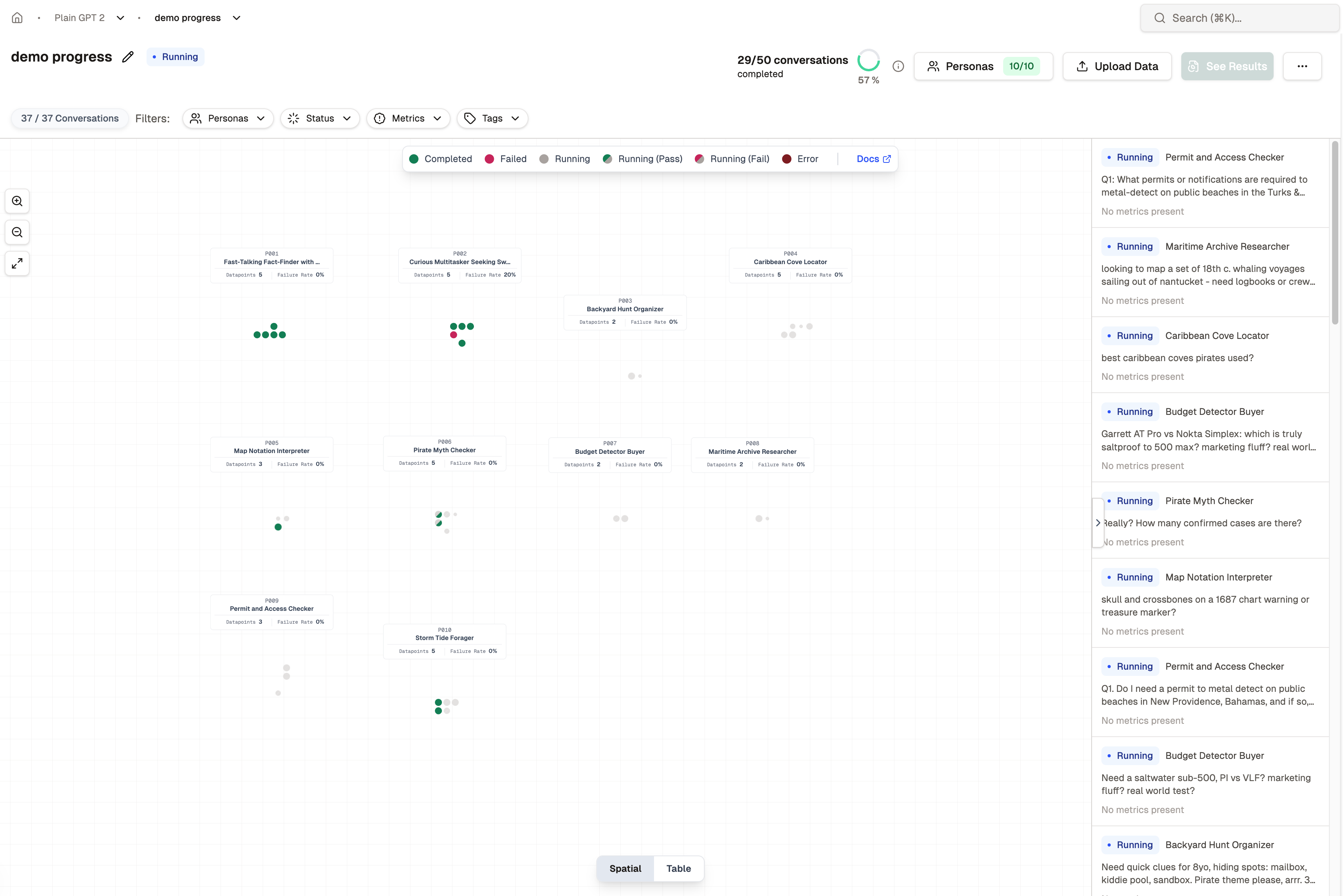
Solid Colors
In Progress — Conversation has no response yet and is still in progress. These dots often have subtle animation while actively running. Error — Conversation encountered a critical error and could not complete. These typically indicate connectivity issues, agent failures, or system problems that prevented the conversation from running. Clear — Conversation is complete with full validation and no metrics or risks triggered. These represent ideal interactions where your agent performed exactly as expected. Triggered — Conversation is complete with full validation, but metrics or risks were triggered. Review these to understand what quality thresholds your agent crossed.Split Colors (Diagonal Gradient)
Split colors appear when conversations are actively running: In Progress (Clear) — The conversation is in progress with no metrics triggered yet. The dot shows a diagonal gradient (half green, half gray). This occurs when:- The simulation reached a terminal state but the conversation isn’t complete (hasn’t reached max depth or validation is incomplete), OR
- The conversation has a response but hasn’t reached max depth or completed all validations
Interacting with the View
Inspecting Conversations
Click any dot to open the full conversation transcript. This lets you review the exact exchange between the persona and your agent, including which metrics were triggered and why.Switching to Table View
Click the Table button at the bottom of the screen to switch to a tabular representation of the same data. The table view provides sortable columns and filters for systematic analysis of large simulation sets.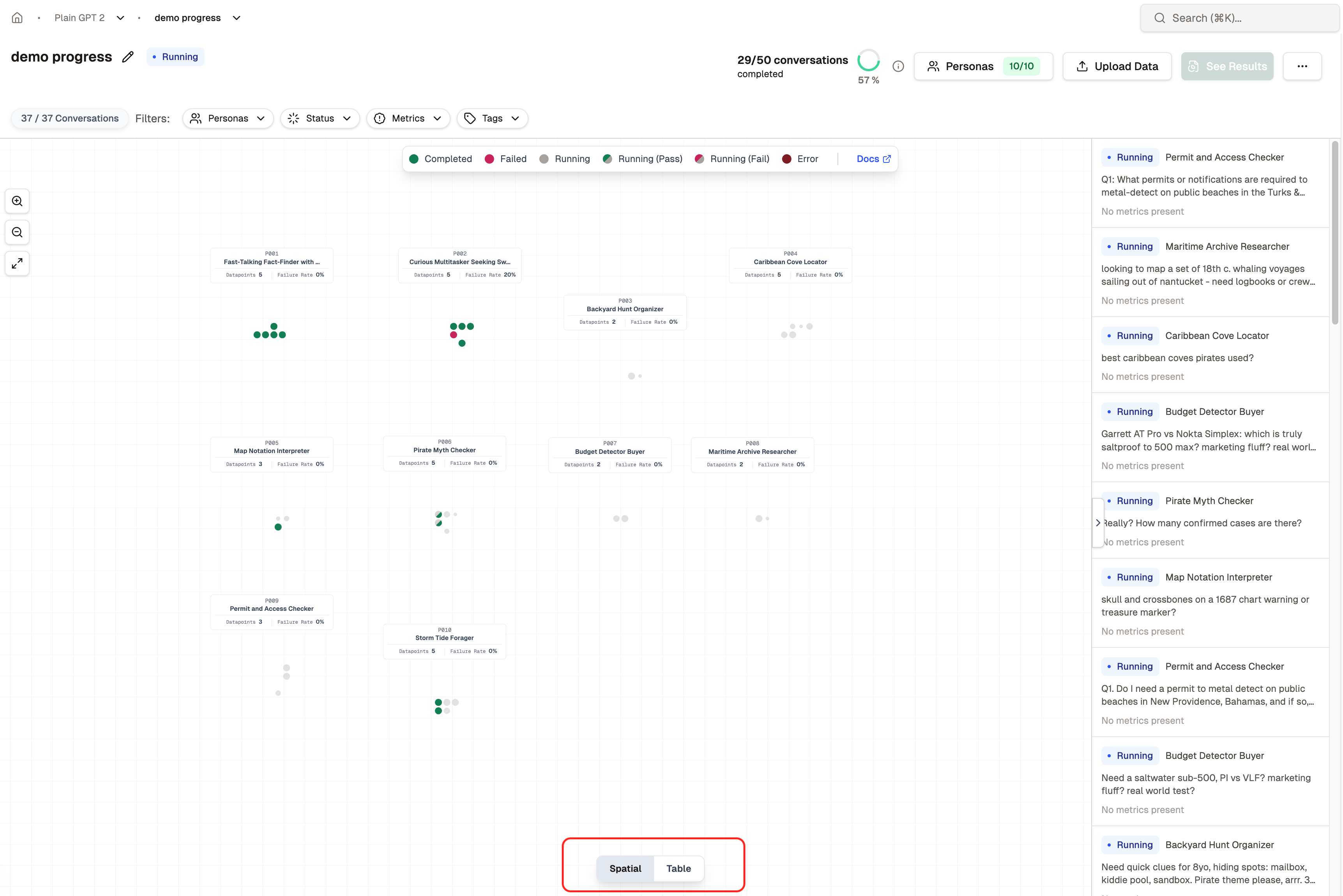
Downloading Data
Click the action button in the top right corner and select Download data to export all conversations. This gives you a portable copy for offline analysis, sharing with your team, or integrating with other tools.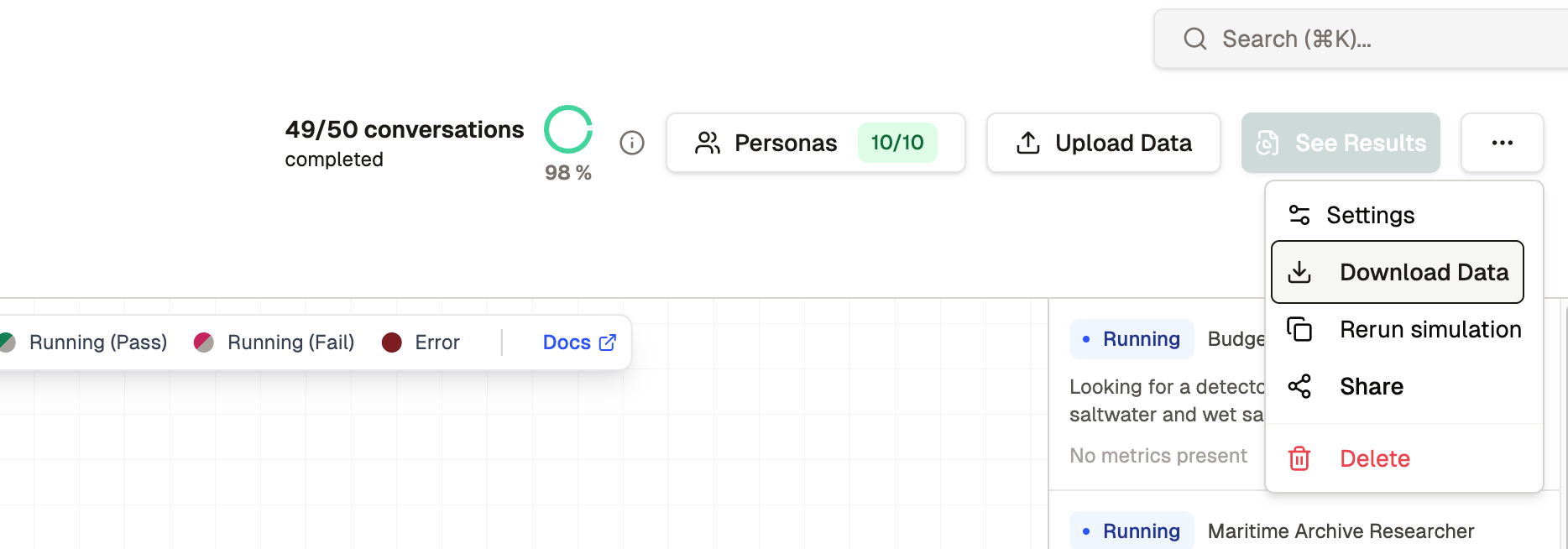
When to Use This View
The spatial view excels at:- Monitoring simulation progress in real time
- Quickly spotting patterns in success and failure rates across personas
- Identifying which personas trigger the most metrics
- Getting an at-a-glance sense of overall agent performance